
Apple Watch
Odisway on your wrist.
The Apple Watch app comes with Odisway for iPhone. Here are three ways to get it onto your watch.
It installs by itself.
When Automatic App Downloads is on, your watch gets Odisway a few minutes after your iPhone does. Most watches have it on.
On your iPhone: Watch app › My Watch › App Store › Automatic App Downloads
Install it from your iPhone.
Open the Watch app on your iPhone, stay on My Watch and scroll all the way down. UnderAvailable Apps, tap Install next to Odisway.
Already installed? It’s listed under Installed on Apple Watch instead.

Or get it on the watch.
Open the App Store on your Apple Watch, search for Odisway and tap Get. The watch app also works without your iPhone nearby.
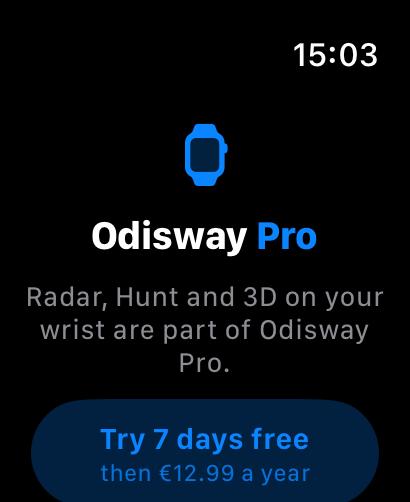
Unlock Pro on the watch.
The Apple Watch app is part of Odisway Pro. Bought on your iPhone or iPad? It unlocks on the watch too, with the same Apple Account.
- To buy on the watch, tap a plan, then double-click the side button to confirm.
- Already bought it? Tap Restore purchase at the bottom.
- Manage or cancel a subscription in Settings on your iPhone: tap your name, then Subscriptions.
If it doesn’t install.
Wake the watch
- Put it on its charger and unlock it.
- Keep it next to your iPhone, with Bluetooth and Wi-Fi on for both.
Give it time
- Installing on a watch is slow. A circle fills on the app’s icon while it loads.
- Make sure the watch has some free storage: Watch app › General › Storage.
Still nothing?
- Restart your iPhone and your watch, then try again.
- Check that your watch runs watchOS 10 or later: Watch app › General › Software Update.
More in Apple’s Apple Watch User Guide. Still stuck? Support ›